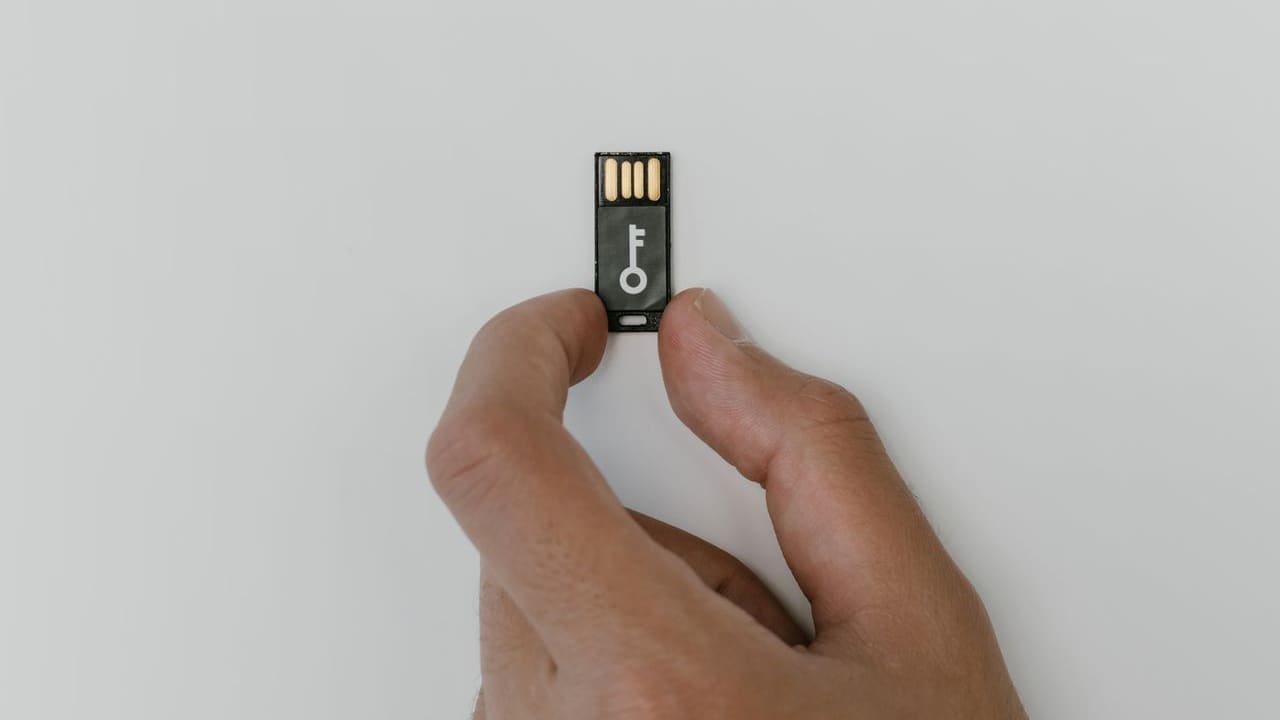
Format a USB Drive or SD Card (and Fix "Write Protected")
Tools You'll Need
File ExplorerDiskPart
Formatting erases everything on the drive.
1. SD cards in an adapter: check the small lock switch on the side is pushed up (unlocked).
2. Format: open File Explorer, right-click the drive, then Format. Choose exFAT for drives bigger than 32 GB (works on Windows, Mac and most TVs), or FAT32 for small drives and older devices. Click Start.
3. "The disk is write-protected": open Command Prompt as administrator and run diskpart, then:
list disk
select disk 2 (use the number of your USB drive, check the size carefully)
attributes disk clear readonly
exit
4. Still write-protected or showing 0 bytes? The drive is usually failing. Copy off what you can and replace it.
Be very careful to select the right disk in diskpart. Picking the wrong one can erase the PC's drive.