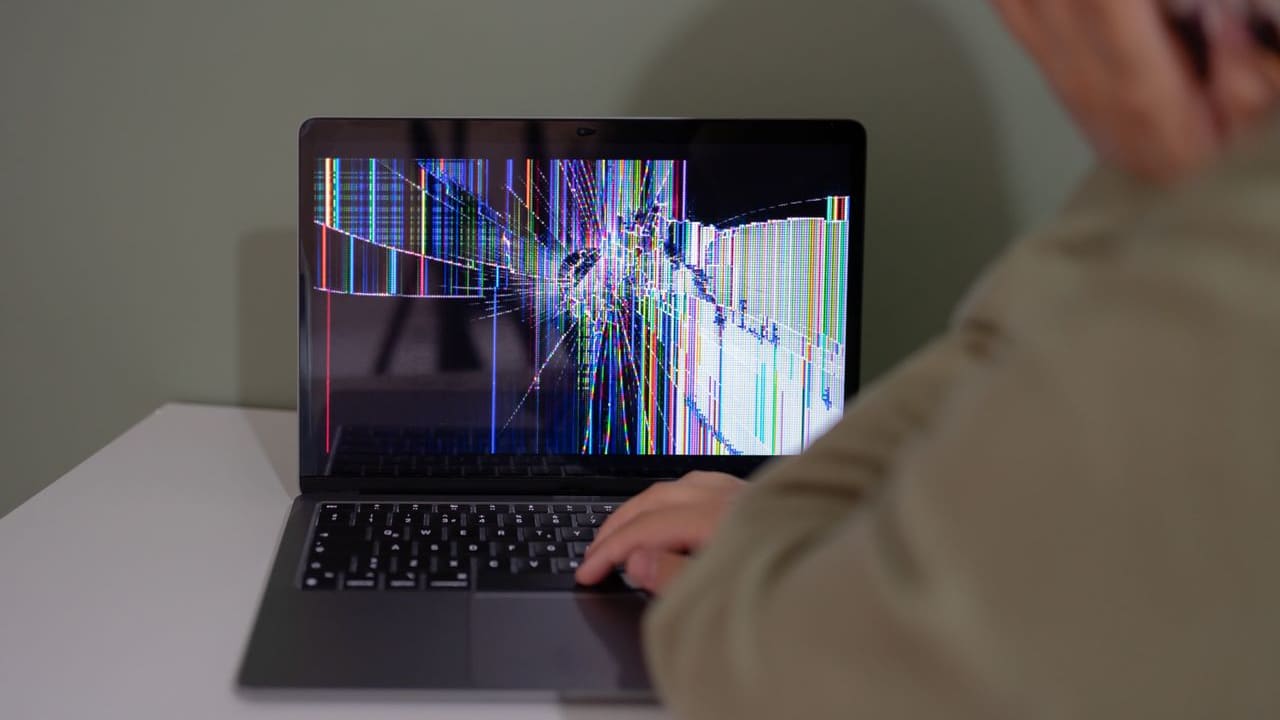
1. Open Task Manager (Ctrl + Shift + Esc). If Task Manager flickers too, it's usually the display driver. If it doesn't, an app is causing it.
2. Display driver: update it from Windows Update or the graphics maker (Intel, AMD, NVIDIA), or roll it back in Device Manager, then Display adapters, then Properties, then Driver.
3. App problem: update or uninstall recently installed apps.
4. Set the correct refresh rate: Settings, then System, then Display, then Advanced display.
5. External monitor: try another cable or port.
6. Flickering that changes when you move the laptop screen usually means the screen cable or panel is faulty. That's a hardware repair.