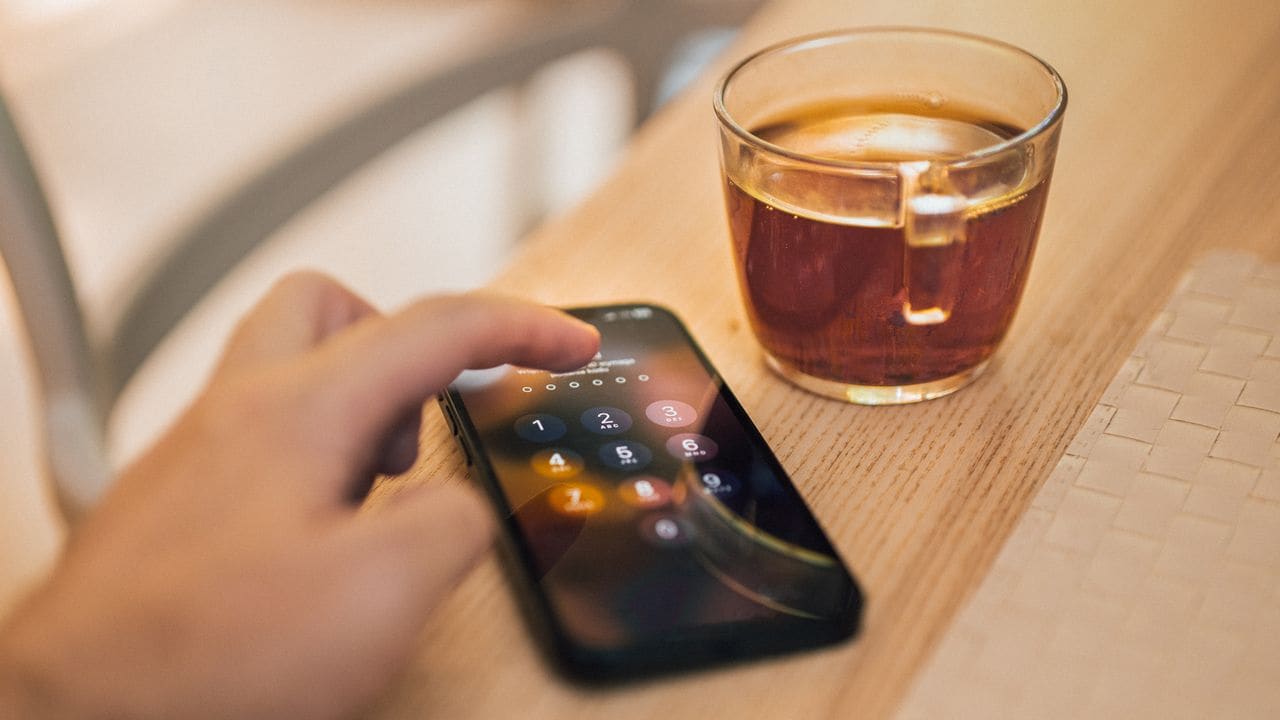
Hide Private Apps and Photos in Samsung Secure Folder
Tools You'll Need
Samsung Secure FolderSamsung Account
Secure Folder is a separate, locked space on Samsung phones for private apps, photos and files.
1. Settings, then Security and privacy, then More security settings, then Secure Folder. Sign in to your Samsung account.
2. Choose a lock type (PIN, pattern or fingerprint) different from your phone lock.
3. Add apps (you can have a second WhatsApp inside) and move photos or files in.
4. You can hide the Secure Folder icon from the apps screen.
Back up Secure Folder separately (Secure Folder settings, then Backup and restore). It's erased if you reset the phone or forget its lock.