Fix "Boot Device Not Found" or "No Bootable Device"
Tools You'll Need
BIOSWindows bootable USB
1. Remove USB drives, SD cards and DVDs, then restart.
2. Open the BIOS (see our BIOS keys tip) and check the drive is detected.
3. Drive detected: set Windows Boot Manager (or the drive) first in the boot order. Make sure boot mode is UEFI for Windows installed in UEFI (most PCs from 2015 onwards).
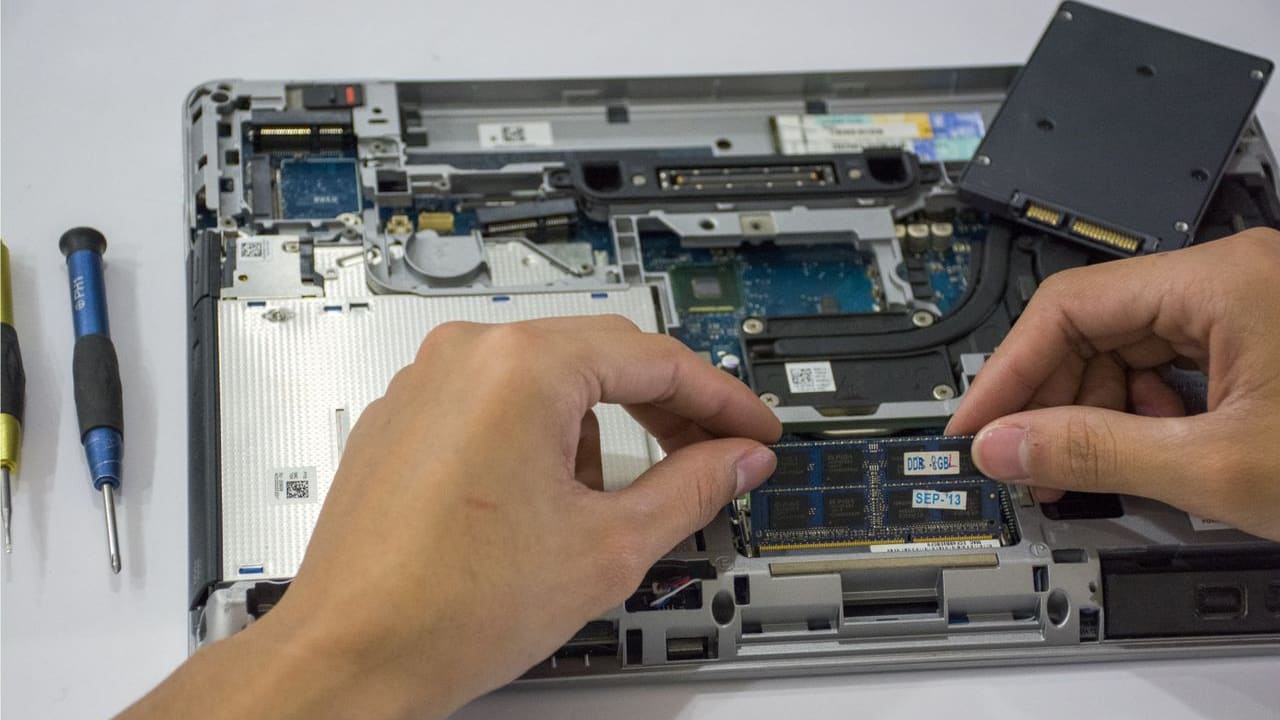
4. Drive not detected at all: on desktops, check the drive's cables. On laptops, the drive may have come loose or failed.
5. Drive detected but still no boot: boot from a Windows USB and choose Repair your computer, then Troubleshoot, then Startup Repair.
6. A failed drive needs replacing. We can try to recover the files and install an SSD.